
Connect Slack to Raysly
Connect Slack to Raysly from Integrations. This guide covers what the connection does today and what stays in Slack.
Last updated
Connect Slack to Raysly from Integrations. Raysly posts a line to a Slack channel when you get a new lead. The line has the lead id, source, region and a link. No customer details.
This guide says exactly what the Slack connection does today. Raysly does not read more than the connection asks for.
Before you start
- Sign in to Raysly as the account owner or an admin. Only owners and admins can connect or disconnect an integration.
- Have the Slack account that should be linked to Raysly.
Connect
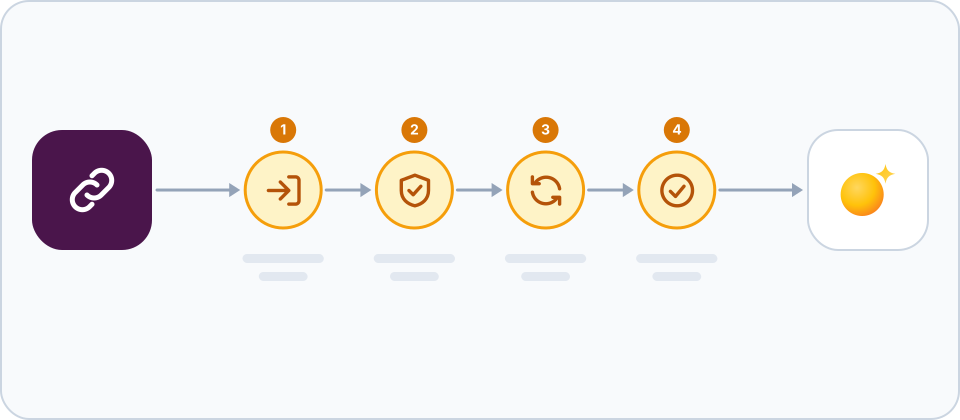
- Open the Slack tile. In Raysly open Settings → Integrations. Find the Slack tile with the search box or the Team messaging filter, and click Connect on the tile. A details panel opens. Click Connect in the panel to go to Slack.
- Approve Slack. Sign in to Slack, pick the workspace and approve. Then choose the channel in the Raysly panel.
- Check the connection. Raysly brings you back to Integrations and shows a green confirmation banner. The tile now says Connected, and the details panel shows which account it is connected as. The tile shows Slack as connected. The next new lead posts to the channel you picked.
- Know what the connection does. Raysly posts a line to a Slack channel when you get a new lead. The line has the lead id, source, region and a link. No customer details.
Disconnect
In Settings → Integrations open the Slack tile and click Disconnect, then confirm. Raysly marks the connection as revoked and stops using it. Messages already posted in Slack stay there.
Raysly's authorisation can stay listed at Slack after you disconnect. To remove it there as well, remove the Raysly app from your Slack workspace.
Frequently asked questions
Who can connect or disconnect?
Only the account owner and admins. Other team members can use what is connected but cannot change it.
The connection to Slack did not finish. What now?
Raysly shows a red notice at the top of Integrations that starts with "We couldn't complete the connection" and gives a short reason. Click Dismiss and click Connect again. Nothing is connected until you approve the request at Slack. Still stuck? Email support@raysly.com and tell us the platform, what you clicked and what you saw.
What does Raysly send to Slack?
A lead id, the source, the region and a link back to Raysly. Not the customer name, email or phone.
More for Slack
Connect more tools to Raysly
- Connect Xero to Raysly
- Connect QuickBooks Online to Raysly
- Connect Zoho Books to Raysly
- Connect Google Calendar to Raysly
- Connect Microsoft 365 Calendar to Raysly
- Connect Google Drive to Raysly
- Connect OneDrive to Raysly
- Connect Dropbox to Raysly
- Connect Amazon S3 to Raysly
- Connect Google Analytics 4 to Raysly
- Connect your Facebook Page to Raysly
- Connect Instagram Business to Raysly
- Connect your LinkedIn Company Page to Raysly
- Connect your X account to Raysly
- Connect SharePoint to Raysly
- Connect bexio to Raysly
- Connect Calendly to Raysly
- Connect Gmail to Raysly
- Connect Outlook to Raysly
- Connect SMTP to Raysly
- Connect Notion to Raysly
- Connect ClickUp to Raysly
- Connect Trello to Raysly
- Connect Canva to Raysly
- Connect Zendesk to Raysly
- Use Investment Returns in Raysly
- Use Financing in Raysly
- Use the System diagram in Raysly