
Connect Google Analytics 4 to Raysly
Connect a Google Analytics 4 property to Raysly to see sessions, conversions and top sources on your dashboard. Sign in with Google or use a service account.
Last updated
Connect one of your Google Analytics 4 properties to Raysly and see your site traffic on the Raysly dashboard: sessions, conversions, people active in the last 30 minutes, and your top sources and pages.
Before you start
- You need a Raysly account. If you do not have one yet, create a Raysly account first.
- Sign in to Raysly as the account owner or an admin. Only owners and admins can connect or disconnect an integration.
- Have a Google account that can view the Google Analytics 4 property you want to show.
- Prefer not to sign in with Google? You can use a Google service account instead. It needs at least the Viewer role on the property. Have its JSON key and the GA4 property ID ready.
Connect
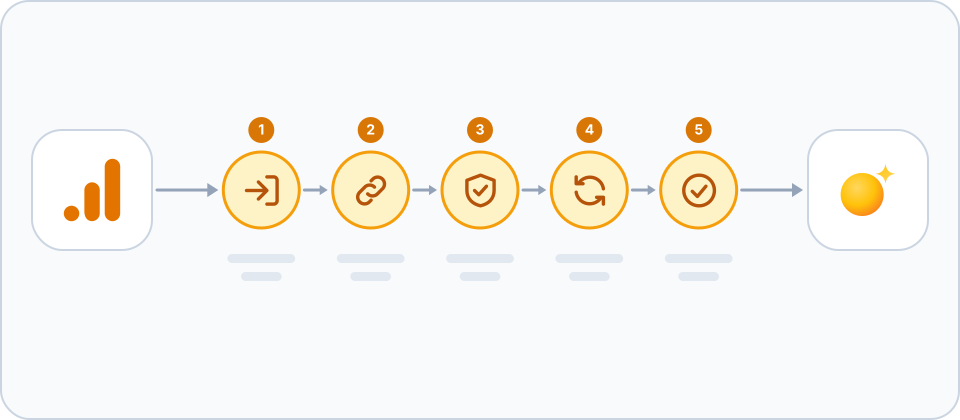
- Open the Google Analytics 4 tile. In Raysly open Settings → Integrations. Find the Google Analytics 4 tile with the search box or the Analytics filter, and click Connect on the tile. A details panel opens. Click Connect in the panel to go to Google.
- Approve read-only access in Google. Sign in with the Google account that can see your property and approve. Raysly asks Google for read-only access to your Analytics data and your list of accounts and properties.
- Choose the property. Back in Raysly the GA4 panel lists the properties you can access. Pick one and click Use this property.
- Check the connection. Once you have picked a property, the tile says Connected. The connection is not complete until you pick one.
- Find the widget on your dashboard. Open Dashboard in the Raysly menu. The card Storefront traffic (GA4) shows sessions and conversions for the last 7 days compared with the 7 days before, people active in the last 30 minutes, and your top sources and pages. If you do not see it, click Customise on the dashboard and add it.
Use a service account instead
In the Google Analytics 4 panel in Settings → Integrations click Use a service account. Enter the GA4 property ID and paste the Service account JSON, then click Save service account. Raysly checks the key against your property before saving it, and stores it encrypted.
What Raysly reads
- Raysly reads your Analytics reports for the property you chose. It does not change anything in Google Analytics.
- The dashboard card is the same for everyone on your team, because the connection belongs to your Raysly account.
Disconnect
In Settings → Integrations open the Google Analytics 4 tile and click Disconnect. Raysly removes the link to your property and the dashboard card stops showing data. It does not remove Raysly from the apps you have approved in your Google account; if you want that, remove it there.
Frequently asked questions
Can I change the property later?
Yes. Disconnect Google Analytics 4 in Settings → Integrations and connect again, then pick the other property.
Do I have to sign in with Google?
No. You can connect with a Google service account instead. Add it as a Viewer on your property, then paste its JSON key and the property ID in the service account form.
Why does the dashboard card not show data?
Check that the tile says Connected and that the property you picked is the one that receives your traffic. Raysly shows the last 7 days.
Who can connect or disconnect?
Only the account owner and admins. Other team members can use what is connected but cannot change it.
The connection to Google did not finish. What now?
Raysly shows a red notice at the top of Integrations that starts with "We couldn't complete the connection" and gives a short reason. Click Dismiss and click Connect again. Nothing is connected until you approve the request at Google. Still stuck? Email support@raysly.com and tell us the platform, what you clicked and what you saw.
More for Google Analytics 4
Connect more tools to Raysly
- Connect Xero to Raysly
- Connect QuickBooks Online to Raysly
- Connect Zoho Books to Raysly
- Connect Google Calendar to Raysly
- Connect Microsoft 365 Calendar to Raysly
- Connect Google Drive to Raysly
- Connect OneDrive to Raysly
- Connect Dropbox to Raysly
- Connect Amazon S3 to Raysly
- Connect your Facebook Page to Raysly
- Connect Instagram Business to Raysly
- Connect your LinkedIn Company Page to Raysly
- Connect your X account to Raysly
- Connect SharePoint to Raysly
- Connect bexio to Raysly
- Connect Calendly to Raysly
- Connect Gmail to Raysly
- Connect Outlook to Raysly
- Connect SMTP to Raysly
- Connect Slack to Raysly
- Connect Notion to Raysly
- Connect ClickUp to Raysly
- Connect Trello to Raysly
- Connect Canva to Raysly
- Connect Zendesk to Raysly
- Use Investment Returns in Raysly
- Use Financing in Raysly
- Use the System diagram in Raysly