
Use Financing in Raysly
Financing is built into Raysly and on by default. Show or hide the Cash / Finance comparison, choose the loan products and add your own with a lender source.
Last updated
Financing is the Cash / Finance comparison on your offers, with loan products for your region. It comes with Raysly and is on by default, so there is nothing to connect. This guide shows how to switch it off or on, choose the products your customers see, and add your own.
This guide does not list any rates or terms. Each product shows the lender's own details and a link to the lender page.
Before you start
- You need a Raysly account. If you do not have one yet, create a Raysly account first.
- Sign in to Raysly as the account owner or an admin. Only owners and admins can connect or disconnect an integration.
- To add or tailor a product, have the lender's page address and the date you checked it ready. Every product shown to a customer must cite the lender's source page and a verification date.
Set up
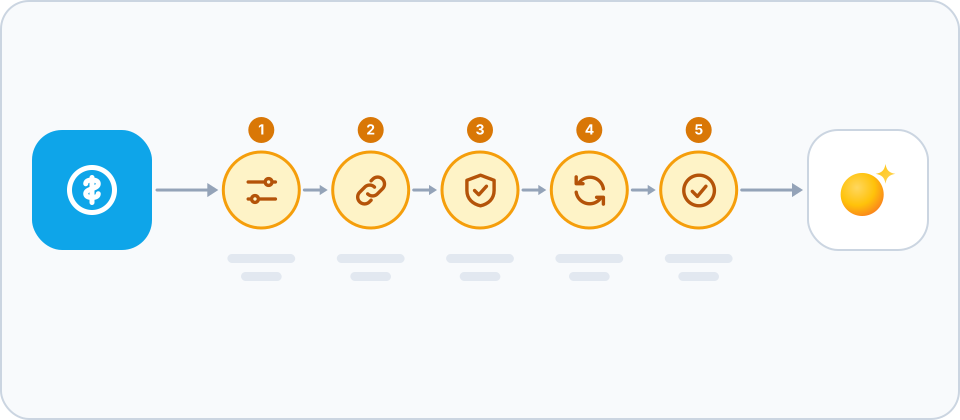
- Find Financing. In Raysly open Settings → Integrations. Under the Built in filter, click Configure on the Financing tile. The details panel shows an on/off switch and a Configure link.
- Switch it on or off. The switch shows or hides the Cash / Finance comparison on your offers right away. It is on by default. Turn it off if you do not want to show financing at all.
- Choose the platform products. Click Configure to open Financing on your storefront. Under Platform products you see the loan products Raysly keeps up to date for your region, each with a link to the lender page. Untick Show to hide a product, then click Save show/hide.
- Tailor or add your own product. Click Edit on a platform product to save a copy you own; it replaces the original on your offers. Or click Add product under Your products. Fill in the lender, the product and its terms, then complete Source & verification: the Source URL (lender page) and the Verification date. Click Save product.
- Check your products. Your products appear under Your products, next to the platform list on your offers. Click Edit to change one, or Delete and confirm to remove it. A deleted product disappears from your offers and cannot be restored.
Keep your sources honest
Rates and terms shown to customers must come from a real, current lender source. Only enter what the lender publishes, link the lender page, and update the verification date when you re-check it. If you cannot confirm a detail, leave the product out.
Frequently asked questions
Do I need to connect anything?
No. Financing is built into Raysly and on by default. There is no lender account to link.
What happens when I switch Financing off?
The Cash / Finance comparison is hidden on your offers. Switch it on again and it comes back.
Why do I see no platform products?
Raysly shows the products for your region. If none are set up for your region yet, the list says so. You can still add your own products.
Who can change these settings?
Only the account owner and admins can open the Financing settings.
More for Financing
Connect more tools to Raysly
- Connect Xero to Raysly
- Connect QuickBooks Online to Raysly
- Connect Zoho Books to Raysly
- Connect Google Calendar to Raysly
- Connect Microsoft 365 Calendar to Raysly
- Connect Google Drive to Raysly
- Connect OneDrive to Raysly
- Connect Dropbox to Raysly
- Connect Amazon S3 to Raysly
- Connect Google Analytics 4 to Raysly
- Connect your Facebook Page to Raysly
- Connect Instagram Business to Raysly
- Connect your LinkedIn Company Page to Raysly
- Connect your X account to Raysly
- Connect SharePoint to Raysly
- Connect bexio to Raysly
- Connect Calendly to Raysly
- Connect Gmail to Raysly
- Connect Outlook to Raysly
- Connect SMTP to Raysly
- Connect Slack to Raysly
- Connect Notion to Raysly
- Connect ClickUp to Raysly
- Connect Trello to Raysly
- Connect Canva to Raysly
- Connect Zendesk to Raysly
- Use Investment Returns in Raysly
- Use the System diagram in Raysly