
Use Investment Returns in Raysly
Investment Returns is built into Raysly and on by default. Show or hide each part of the panel on your offers, reorder the tiles and re-word the labels.
Last updated
Investment Returns is the savings, payback and return panel on your offers. It comes with Raysly and is on by default, so there is nothing to connect. This guide shows how to turn it off or on and how to tailor it.
Raysly works out the figures for each offer. You decide which parts show, in which order, and how they are worded.
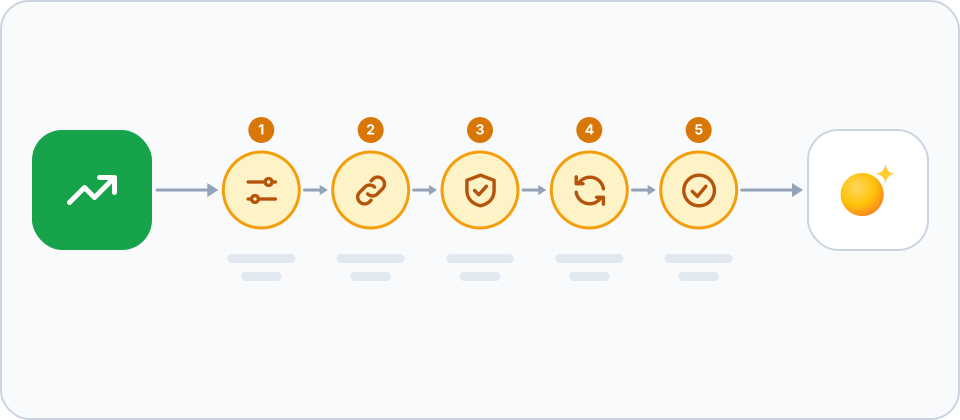
Before you start
- You need a Raysly account. If you do not have one yet, create a Raysly account first.
- Sign in to Raysly as the account owner or an admin. Only owners and admins can connect or disconnect an integration.
- Know which parts of the panel you want your customers to see.
Set up
- Find Investment Returns. In Raysly open Settings → Integrations. Under the Built in filter, click Configure on the Investment Returns tile. The details panel shows an on/off switch and a Configure link.
- Switch it on or off. The switch turns the whole panel on or off on your offers right away. It is on by default. Turn it off if you do not want the panel shown to your customers at all.
- Choose the components. Click Configure to open the Investment Returns settings. Under Components, untick any part you want to hide. For the four headline tiles (Annual savings, Return rate, Payback period and 30-year net profit) use the arrows to change their order. You can also hide the Electricity bill breakdown, the 30-year cashflow table, the Cash / Finance toggle and the Self-consumption rate line.
- Re-word the labels. Under Text, type your own wording for any label. Leave a field empty to use the Raysly wording, which is shown as the placeholder and is already translated for every language.
- Save your changes. Click Save changes. The message Saved. confirms it. The component and text settings need this save; the on/off switch saves by itself.
Colours and style
The look of the panel is set on the Branding page under Sites, not here.
Where customers see it
Customers see the panel on your offer pages. If you hide a part, it disappears from the panel on every offer.
Frequently asked questions
Do I need to connect anything?
No. Investment Returns is built into Raysly and on by default. There is no account to link.
I switched it off. Can I get it back?
Yes. Open Settings → Integrations, open the Investment Returns tile and turn the switch on.
Why can I not see the panel on my offers?
Check that the Investment Returns switch is on. Raysly can also switch a built-in feature off for the whole platform; in that case it is hidden from your offers even when your own switch is on.
Who can change these settings?
Only the account owner and admins can open the Investment Returns settings.
More for Investment Returns
Connect more tools to Raysly
- Connect Xero to Raysly
- Connect QuickBooks Online to Raysly
- Connect Zoho Books to Raysly
- Connect Google Calendar to Raysly
- Connect Microsoft 365 Calendar to Raysly
- Connect Google Drive to Raysly
- Connect OneDrive to Raysly
- Connect Dropbox to Raysly
- Connect Amazon S3 to Raysly
- Connect Google Analytics 4 to Raysly
- Connect your Facebook Page to Raysly
- Connect Instagram Business to Raysly
- Connect your LinkedIn Company Page to Raysly
- Connect your X account to Raysly
- Connect SharePoint to Raysly
- Connect bexio to Raysly
- Connect Calendly to Raysly
- Connect Gmail to Raysly
- Connect Outlook to Raysly
- Connect SMTP to Raysly
- Connect Slack to Raysly
- Connect Notion to Raysly
- Connect ClickUp to Raysly
- Connect Trello to Raysly
- Connect Canva to Raysly
- Connect Zendesk to Raysly
- Use Financing in Raysly
- Use the System diagram in Raysly