
Connect your Facebook Page to Raysly
Connect your Facebook Page to Raysly from Integrations and publish posts to it from the Raysly Social Studio. Owners and admins connect it in a few clicks.
Last updated
Connect your Facebook Page to Raysly and publish posts to it from the Social Studio. The Facebook Page connection is in beta.
Facebook and Instagram use one Meta authorisation. When you connect your Page, Raysly also adds any Instagram Business account linked to the Pages you allow.
Before you start
- You need a Raysly account. If you do not have one yet, create a Raysly account first.
- Sign in to Raysly as the account owner or an admin. Only owners and admins can connect or disconnect an integration.
- The Social channels section in Integrations and the Social menu must be visible in your Raysly account. If you do not see them, the Social Studio is not switched on for your account.
- Use a Facebook account that administers the Facebook Page you want to publish to.
Connect
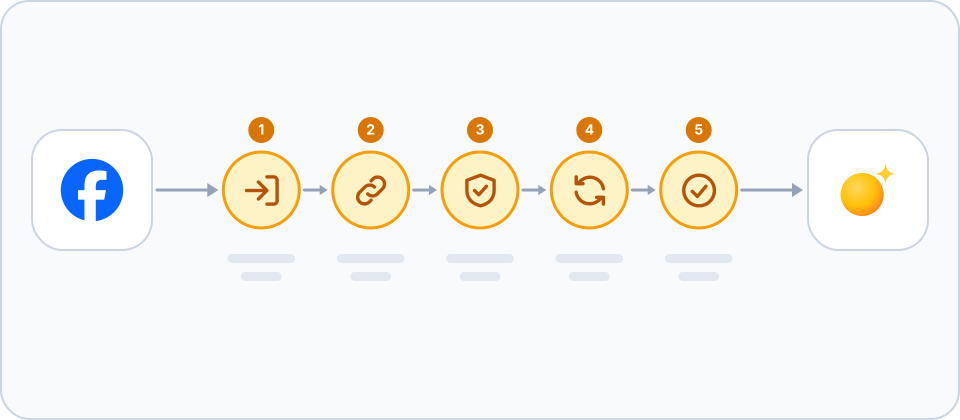
- Open the Facebook Page tile. In Raysly open Settings → Integrations. Find the Facebook Page tile with the search box or the Social channels filter, and click Connect on the tile. A details panel opens. Click Connect in the panel to go to Facebook.
- Choose your Pages in Facebook. Sign in to Facebook and select the Page, or Pages, that Raysly may use. Approve. Raysly asks for permission to list your Pages, to read their activity and insights, and to publish posts on them.
- Check the connection. Raysly brings you back to Integrations. A green banner confirms the connection and points you to Settings → Social accounts. The tile says Connected. If Raysly finds no Page on your account, an amber notice says so; make sure your Facebook account administers a Page and select it during the connection, then reconnect.
- Publish to Facebook. Open Social in the Raysly menu and click Design. Build your post. In the Publish to strip of the editor, keep Facebook switched on and click Publish. The strip shows Connected as and the account name for each connected channel.
- Follow your posts. Open Social and then History to see each post as Scheduled, Published or Failed.
Your public social page
The first time you connect any social channel, Raysly turns on a public /social page on your site that lists your connected channels. Manage it under Settings → Social accounts: switch the page on or off, and hide a single channel from the /social page, the site footer and your email signatures.
Use your own Meta app (optional)
By default Connect uses Raysly's shared Meta app. Owners and admins can instead use their own Meta developer app: open the tile's details panel and click Use your own Meta app, then enter its client ID and client secret. Your app must be reviewed by Meta separately.
Disconnect
In Settings → Integrations open the Facebook Page tile and click Disconnect. Raysly removes the Facebook Page channels from your account. Posts already published stay on Facebook.
Facebook and Instagram share one Meta authorisation. Raysly removes it from Meta only after both the Facebook Page and the Instagram Business channels are disconnected. Disconnecting one leaves the other working.
Frequently asked questions
The Facebook tile says Not configured. Why?
Raysly has not set up its app with Facebook, so the tile shows Not configured and has no Connect button. If you reach a connect link anyway, Raysly sends you back to Integrations with the notice "We couldn't complete the connection: this connection is not set up on Raysly yet. Nothing was changed on your account." Nothing changes on your Facebook account. Still stuck? Email support@raysly.com and tell us the platform, what you clicked and what you saw.
Can I connect more than one Page?
Yes. Raysly adds every Page you select during the connection. Each one appears as its own channel.
Why did my Instagram account appear too?
Facebook and Instagram use one Meta authorisation. Raysly adds the Instagram Business account linked to each Page you allow, so it appears as a channel next to the Page.
Who can connect or disconnect?
Only the account owner and admins. Other team members can use what is connected but cannot change it.
The connection to Facebook did not finish. What now?
Raysly shows a red notice at the top of Integrations that starts with "We couldn't complete the connection" and gives a short reason. Click Dismiss and click Connect again. Nothing is connected until you approve the request at Facebook. Still stuck? Email support@raysly.com and tell us the platform, what you clicked and what you saw.
More for Facebook Page
Connect more tools to Raysly
- Connect Xero to Raysly
- Connect QuickBooks Online to Raysly
- Connect Zoho Books to Raysly
- Connect Google Calendar to Raysly
- Connect Microsoft 365 Calendar to Raysly
- Connect Google Drive to Raysly
- Connect OneDrive to Raysly
- Connect Dropbox to Raysly
- Connect Amazon S3 to Raysly
- Connect Google Analytics 4 to Raysly
- Connect Instagram Business to Raysly
- Connect your LinkedIn Company Page to Raysly
- Connect your X account to Raysly
- Connect SharePoint to Raysly
- Connect bexio to Raysly
- Connect Calendly to Raysly
- Connect Gmail to Raysly
- Connect Outlook to Raysly
- Connect SMTP to Raysly
- Connect Slack to Raysly
- Connect Notion to Raysly
- Connect ClickUp to Raysly
- Connect Trello to Raysly
- Connect Canva to Raysly
- Connect Zendesk to Raysly
- Use Investment Returns in Raysly
- Use Financing in Raysly
- Use the System diagram in Raysly