
Connect Amazon S3 to Raysly
Connect your own Amazon S3 bucket, or an S3-compatible service, to Raysly: enter the details, run the connection test and save the encrypted credentials.
Last updated
Connect your own Amazon S3 bucket, or any S3-compatible storage service, to Raysly. You enter the endpoint, bucket and access keys, Raysly tests them against your bucket, and only then saves them.
This guide says exactly what the connection does today. Raysly stores your credentials encrypted and shows the connection as active. Documents you upload in Raysly are still stored by Raysly; the S3 connection does not move or copy them into your bucket.
Before you start
- You need a Raysly account. If you do not have one yet, create a Raysly account first.
- Sign in to Raysly as the account owner or an admin. Only owners and admins can connect or disconnect an integration.
- Create a bucket for Raysly at your S3 provider, in the region that matches where your customer data must stay.
- Create an access key that is limited to that bucket. It must be able to check the bucket, write an object and delete an object, because the connection test does all three. Do not use a root account key.
- Have ready the endpoint, region, bucket name, access key ID and secret access key.
Connect
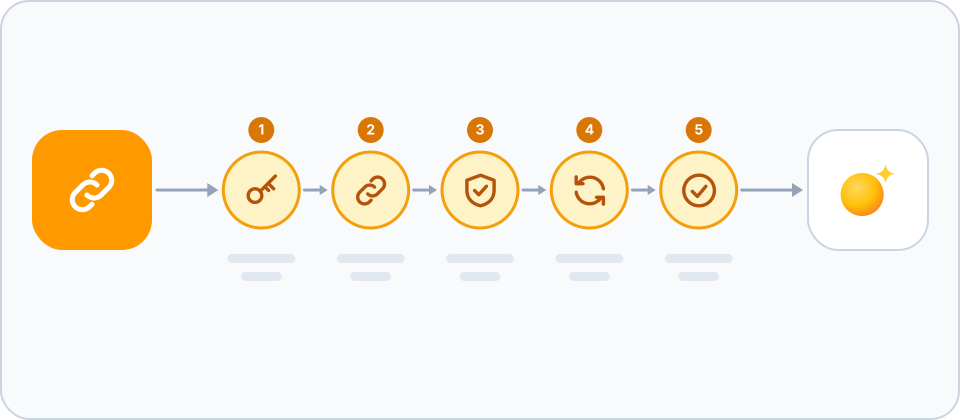
- Open the S3 tile. In Raysly open Settings → Integrations. Find the Amazon S3 (or compatible) tile with the search box or the File storage filter, and click Set up. A details panel opens with the S3 connection form.
- Enter the connection details. Fill in Endpoint (the address starts with https:// already, so type the rest, for example s3.eu-central-1.amazonaws.com), Region, Bucket, Access key ID and Secret access key. Path prefix (optional) limits Raysly to one folder in the bucket.
- Test the connection. Click Test connection. Raysly checks that the bucket exists, writes a tiny test file and deletes it again. If a step fails, Raysly shows the error from your provider. Save credentials stays disabled until the test succeeds.
- Save the credentials. When the test succeeds, click Save credentials. Raysly encrypts the keys before storing them.
- Check the connection. The tile now says Connected. The form is replaced by a note that the credentials are stored.
Compatible services
The form accepts any S3-compatible endpoint, for example Cloudflare R2, Backblaze B2, MinIO or Wasabi.
Region note
Create your bucket in the same region as the jurisdiction of your customer data.
Rotate keys or disconnect
Raysly does not rotate your keys. To use new keys, open the S3 tile in Settings → Integrations, click Disconnect, then add the credentials again.
Disconnecting disables the connection in Raysly. It does not delete anything in your bucket. To cut off access completely, also delete the access key at your S3 provider.
Frequently asked questions
Are my keys stored safely?
Raysly encrypts the access keys before saving them, and only saves them after the connection test succeeds.
The connection test fails. What now?
Raysly shows the error from your provider. Check the endpoint, region, bucket name and keys, and that the key can check the bucket, write an object and delete an object. If the test wrote a file but could not delete it, Raysly says so and the test file stays in your bucket.
Will my documents be saved to my bucket?
No. Documents you upload in Raysly stay in Raysly storage. The connection stores your credentials and checks that the bucket works.
Who can connect or disconnect?
Only the account owner and admins. Other team members can use what is connected but cannot change it.
More for Amazon S3
Connect more tools to Raysly
- Connect Xero to Raysly
- Connect QuickBooks Online to Raysly
- Connect Zoho Books to Raysly
- Connect Google Calendar to Raysly
- Connect Microsoft 365 Calendar to Raysly
- Connect Google Drive to Raysly
- Connect OneDrive to Raysly
- Connect Dropbox to Raysly
- Connect Google Analytics 4 to Raysly
- Connect your Facebook Page to Raysly
- Connect Instagram Business to Raysly
- Connect your LinkedIn Company Page to Raysly
- Connect your X account to Raysly
- Connect SharePoint to Raysly
- Connect bexio to Raysly
- Connect Calendly to Raysly
- Connect Gmail to Raysly
- Connect Outlook to Raysly
- Connect SMTP to Raysly
- Connect Slack to Raysly
- Connect Notion to Raysly
- Connect ClickUp to Raysly
- Connect Trello to Raysly
- Connect Canva to Raysly
- Connect Zendesk to Raysly
- Use Investment Returns in Raysly
- Use Financing in Raysly
- Use the System diagram in Raysly