
Using Raysly with BigCommerce
What Raysly does once your BigCommerce store is connected: product sync, the Get instant offer form, leads, privacy and consent, and how to disconnect.
Last updated
This guide is for installers who have already connected a BigCommerce store to Raysly. If you have not, start with Install Raysly on BigCommerce.
The "Get instant offer" form gives your visitors a tailored solar offer in minutes, and every enquiry lands in your Raysly lead pipeline, ready to follow up.
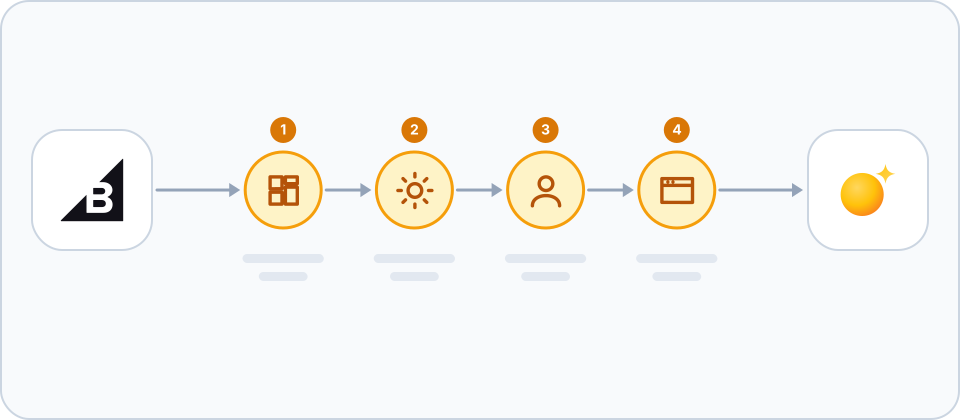
What Raysly does for your store
- Catalogue sync: Raysly imports your BigCommerce products, prices, images and stock (read only) and keeps them up to date, so offers use your prices.
- Instant-offer form: Raysly adds the offer form to your storefront through Script Manager, and creates a dedicated "Get instant offer" page.
- Leads: what a visitor enters in the form lands in your Raysly pipeline (Leads).
What stays on BigCommerce
Your products, checkout and invoicing stay on BigCommerce. Raysly does not import order history, and invoicing pass-through stays off during the beta: Raysly keeps issuing offers and invoices as it does today.
Manage the connection
Open Settings → Integrations and find the BigCommerce card. Owners and admins can see the connection status, run a sync and change what Raysly does for the store.
- Catalogue sync is on by default. When off, Raysly stops scheduled and webhook syncs; "Sync now" still works.
- Invoicing stays on your shop (opt-in) is off by default and should stay off during the beta.
Change how the form looks
Open Settings → Website widget in Raysly and find the card called Look of the form. Changes apply to your BigCommerce site without reinstalling anything.
- Look of the form: "Match my website" (the form takes your site font and accent colour), "My Raysly look" (the theme saved in Sites → Branding) or "Raysly look".
- Show the Raysly cookie notice: turn this off if your website already asks visitors for cookie consent. The form then collects no consent, so Raysly analytics stay off.
- "Get instant offer" page: a dedicated page with only the offer form. BigCommerce stores get it automatically; switch it off here if you do not want it.
- Show it in the main menu: off by default. Switch it on to add a link to your main menu, and change the link text (empty means "Get instant offer").
Privacy and consent
- The widget is a Raysly form shown on your pages. It collects what a visitor chooses to enter to get an offer (such as contact and property details) and the address of the page it is on.
- You own the consent notices: list the Raysly widget in your cookie banner and privacy policy.
- The script Raysly adds in Script Manager is registered under the analytics consent category, so BigCommerce loads it only for visitors who consented to analytics. Visitors who decline or do not answer your cookie banner do not see the widget.
- The script Raysly installs never sets data-consent, so your analytics ids are never passed to the offer page.
- Leads are stored in your own Raysly account for your team. You are the data controller; Raysly processes them on your behalf under its data processing agreement.
Disconnect or remove Raysly
- To disconnect from Raysly, use Disconnect on the BigCommerce card. The dialog lets you also remove all synced products; if you do not tick it, imported products stay in your Raysly inventory.
- To remove the app from BigCommerce, uninstall it in the BigCommerce control panel. Raysly then revokes the connection and deletes the stored access token once BigCommerce confirms it is no longer valid.
Frequently asked questions
My products do not match BigCommerce. How do I refresh them?
Open the BigCommerce card in Settings → Integrations and use Sync now. Catalogue sync must be on for scheduled updates.
Can I hide the Get instant offer page?
Yes. Switch the "Get instant offer" page off under Settings → Website widget, in the Look of the form card.
Where do I get help?
Still stuck? Email support@raysly.com and tell us the platform, what you clicked and what you saw.