
Install Raysly on BigCommerce
Connect your BigCommerce store to Raysly: approve the Raysly app, link your store and add the Get instant offer form to your storefront. Step by step.
Last updated
Keep selling on BigCommerce and add Raysly instant offers and lead capture to your store. Your products, checkout and invoicing stay on BigCommerce; Raysly reads your products and prices so your offers use them, and shows the Raysly offer form on your storefront.
This connector is in beta. Raysly keeps issuing offers and invoices as it does today; invoicing pass-through stays off while the connector is in beta.
Before you start
- You need a Raysly account. If you do not have one yet, create a Raysly account first.
- Sign in to Raysly as the account owner or an admin.
- Have someone who can approve apps in your BigCommerce store ready (you can do both yourself if you own the store).
- Know your storefront address, for example https://www.yourstore.com. You add it to Raysly in step 4.
Install and connect
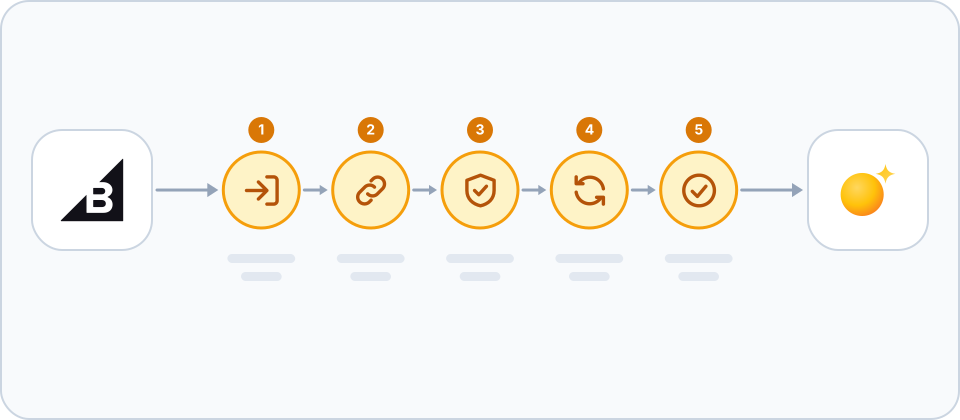
- Start from Raysly. In Raysly open Settings → Integrations, find the BigCommerce card and click Connect with BigCommerce. You are sent to BigCommerce to sign in to your store and approve the Raysly app. There are no API keys to copy.
- Approve the Raysly app in BigCommerce. Review the permissions listed below and confirm. BigCommerce returns you to Raysly.
- Link your store. Raysly shows the store name. Check that it is your store and click Link store within 10 minutes. Raysly then checks the connection and imports your products and prices in the background.
- Allow your storefront on the website widget. To place the instant-offer form on your storefront, add your store address (for example https://www.yourstore.com) under Settings → Website widget, then reconnect. Raysly then installs the widget through BigCommerce Script Manager, at the bottom of your storefront pages.
- Check the result. On the BigCommerce card, confirm the store shows as connected and that your products appear after the first sync. Open your storefront to see the form. Raysly also creates a dedicated "Get instant offer" page; see the user guide for how to change it.
Installing from the BigCommerce control panel
If you add the Raysly app from BigCommerce instead of starting in Raysly, BigCommerce opens a Raysly page. Depending on your account, Raysly either takes you to sign in or sign up and then asks you to confirm which store to connect, or asks you to come back to Raysly and click Connect with BigCommerce. Nothing is linked until you confirm in Raysly while signed in to your own account.
What the Raysly app asks for
- Required: Products, read only: products, variants, prices, images and stock for your offers.
- Required: Information & settings, read only: store name, currency, country and whether your prices include tax. This also gives Raysly the store admin e-mail, phone number and address, which are used only to prefill your Raysly account.
- Optional: Content, modify: used only to add and remove the Raysly widget script in Script Manager. Without it the widget is not installed automatically.
If you remove the app
- Uninstalling the app in BigCommerce: once BigCommerce confirms the access token is no longer valid, Raysly revokes the connection, deletes the stored access token and stops syncing.
- Products already imported stay in Raysly until you remove them: disconnect the store from its card and tick "Also permanently remove all synced products" in the disconnect dialog.
Frequently asked questions
Do I need a Raysly account first?
Yes. Raysly connects a store to your Raysly account, so you create the account first and then connect the store. Create a Raysly account if you do not have one.
The Link store page expired. What now?
The confirmation is valid for 10 minutes. Start again from Settings → Integrations with Connect with BigCommerce.
The form does not show on my storefront. Why?
First check that your storefront address is on the list under Settings → Website widget and that you reconnected after adding it. Second, Raysly registers its script under the analytics consent category, so BigCommerce loads it only for visitors who consented to analytics. Visitors who decline or do not answer your cookie banner do not see the form.
Why are my BigCommerce prices not shown on offers?
Offers only use your BigCommerce prices once Raysly knows whether they include tax. If BigCommerce does not say, prices are not shown on offers.
Does Raysly change or take over my store orders?
No. Your products, checkout and invoicing stay on your store. Raysly does not import order history.
How many stores can I connect?
It depends on your Raysly plan. If you reach the limit, Raysly tells you when you try to connect another store; disconnect a store you no longer use or move to a plan that allows more.
Where can I get more help?
Still stuck? Email support@raysly.com and tell us the platform, what you clicked and what you saw.