
Install Raysly on Shopify
Connect your Shopify store to Raysly: approve the Raysly app, let Raysly read your products and add the Get instant offer form with the Raysly offer app block.
Last updated
Keep selling on Shopify and add Raysly instant offers and lead capture to your store. Raysly reads your products so your offers use them, and shows the Raysly offer form on your storefront. Your products, checkout and invoicing stay on Shopify.
Before you start
- You need a Raysly account. If you do not have one yet, create a Raysly account first.
- Sign in to Raysly as the account owner or an admin.
- Have access to your Shopify admin as someone who can install apps.
- Know your store's .myshopify.com address, for example
mystore.myshopify.com. Raysly needs this address, not your public domain name.
Install and connect
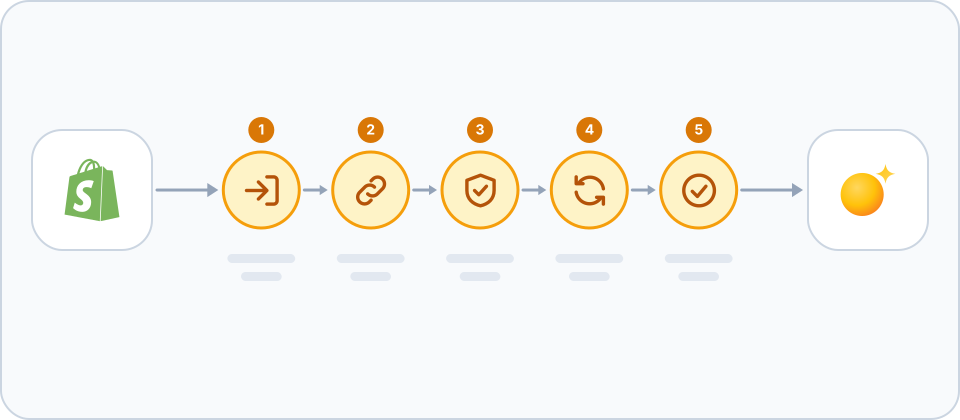
- Start from Raysly. In Raysly open Settings → Integrations, find the Shopify card, enter your store's .myshopify.com address and click Connect with Shopify.
- Approve the Raysly app in Shopify. Shopify shows the permissions the Raysly app asks for (listed below). Review them and approve. Raysly does not need any keys or tokens from you.
- Let Raysly finish the connection. Shopify returns you to Raysly. Raysly checks the connection, registers its webhooks so product, stock and uninstall changes reach it, and starts importing your products in the background.
- Allow your store on the website widget. Add your store address under Settings → Website widget so Raysly may show the form there. Once your store is on the list, Raysly creates the dedicated "Get instant offer" page for you. Stores connected before 20 October 2026 must approve two newer permissions: reconnect Shopify from Settings → Integrations.
- Place the form on a page (optional). In the Shopify theme editor, add the app block called Raysly offer to the page and section where the form should appear. Fill in the Raysly host and your Tenant ID, both shown under Settings → Website widget.
Advanced: connect with an access token
If you cannot install apps on the store, the Shopify card also offers "Advanced: connect with an access token instead". The card explains how to create the token. Connecting with the Raysly app is the recommended way.
Installing from the Shopify App Store
If you add the Raysly app from Shopify instead of starting in Raysly, Raysly asks you to sign in or sign up and then asks you to confirm which store to connect to which Raysly account, or asks you to come back to Raysly and click Connect with Shopify. Nothing is linked to your Raysly account until you confirm there.
What the Raysly app asks for
- Required: Products, read only: products, variants, prices and images for your offers, kept up to date by webhooks.
- Optional: Inventory, read only: stock levels, so offers only include what you can supply.
- Optional: Orders, read only: requested for order mirroring, which is not available yet. Until it is switched on for your connection, Raysly does not subscribe to order updates and keeps no order data. Raysly never changes, takes over or invoices your orders.
- Optional: Content, modify: used only to create and update the "Get instant offer" page (a page with the offer form and nothing else). Raysly does not edit your other pages or blog.
- Optional: Navigation, modify: used only to add that page to your main menu when you switch the menu entry on in Raysly, and to remove it again. Other menu items are left exactly as they are.
If you remove the app or access expires
- Uninstalling the app in Shopify marks the connection as revoked in Raysly and stops syncing.
- If Shopify rejects Raysly's access (for example the token was revoked), the card asks you to reconnect. Reconnecting with Connect with Shopify re-authorises the same connection.
- Products already imported stay in Raysly until you remove them: disconnect the store from its card and tick "Also permanently remove all synced products" in the disconnect dialog.
Frequently asked questions
Do I need a Raysly account first?
Yes. Raysly connects a store to your Raysly account, so you create the account first and then connect the store. Create a Raysly account if you do not have one.
Raysly says the store address is not valid. What do I enter?
Enter your store's .myshopify.com address, for example mystore.myshopify.com. It is the address ending in .myshopify.com that Shopify gave your store, not your public domain name.
The form does not show on my storefront. Why?
Check that your store address is on the list under Settings → Website widget, that the Raysly offer app block is added to the page, and that its Raysly host and Tenant ID are filled in.
Why does the app ask about orders?
The app requests read-only access to orders for order mirroring, which is not available yet. Until it is switched on for your connection, Raysly does not subscribe to order updates and keeps no order data. Raysly never changes, takes over or invoices your orders.
How many stores can I connect?
It depends on your Raysly plan. If you reach the limit, Raysly tells you when you try to connect another store; disconnect a store you no longer use or move to a plan that allows more.
Where can I get more help?
Still stuck? Email support@raysly.com and tell us the platform, what you clicked and what you saw.