
Using Raysly with Webflow
What Raysly does once your Webflow site is connected: Ecommerce product sync, the Get instant offer form, leads, privacy and consent, and disconnecting.
Last updated
This guide is for installers who have already connected a Webflow site to Raysly. If you have not, start with Install Raysly on Webflow.
The "Get instant offer" form gives your visitors a tailored solar offer in minutes, and every enquiry lands in your Raysly lead pipeline, ready to follow up.
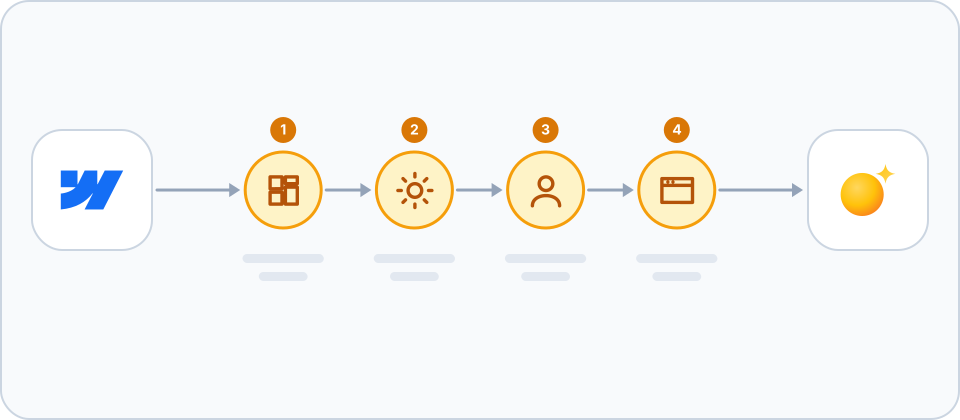
What Raysly does for your site
- Catalogue sync: with Webflow Ecommerce, Raysly reads your products, prices and stock (read only) and updates them when stock changes.
- Instant-offer form: Raysly adds the widget script to your site when the domain is on your widget list, or you paste the snippet into an Embed element yourself.
- Leads: what a visitor enters in the form lands in your Raysly pipeline (Leads).
What stays on Webflow
Your Webflow site, checkout and invoicing stay exactly as they are. Invoicing pass-through stays off during the beta.
Manage the connection
Open Settings → Integrations and find the Webflow card. Owners and admins can see the connection status, run a sync and change what Raysly does for the site.
- Catalogue sync is on by default. API rate limits from Webflow are retried and backed off rather than shown as a lost connection.
- A removed app shows as "Reconnect" after the next sync; reconnect from the same card.
Change how the form looks
Open Settings → Website widget in Raysly and find the card called Look of the form. Changes apply to your Webflow site without reinstalling anything.
- Look of the form: "Match my website" (the form takes your site font and accent colour), "My Raysly look" (the theme saved in Sites → Branding) or "Raysly look".
- Show the Raysly cookie notice: turn this off if your website already asks visitors for cookie consent. The form then collects no consent, so Raysly analytics stay off.
- Menu link: Webflow does not get an automatic menu entry. Link your own menu to the Raysly-hosted page shown on that card (in Webflow: Navigator, then add a link).
Privacy and consent
- The widget is a Raysly form shown on your pages. It collects what a visitor chooses to enter to get an offer (such as contact and property details) and the address of the page it is on.
- You own the consent notices: list the Raysly widget in your cookie banner and privacy policy. Raysly does not apply a consent category on Webflow, so manage the widget in your own consent tool.
- The widget never passes your analytics ids to the offer page unless the page sets data-consent="granted".
- Leads are stored in your own Raysly account for your team. You are the data controller; Raysly processes them on your behalf under its data processing agreement.
Disconnect or remove Raysly
- To disconnect, use Disconnect on the Webflow card. Raysly removes the webhooks and the widget script it added. Imported products stay unless you tick "Also permanently remove all synced products".
- To revoke access completely, also remove the Raysly app in your Webflow workspace settings.
Frequently asked questions
Why does the card say Reconnect?
Webflow does not tell Raysly when the app is removed or its access is lost. After the next sync Raysly shows Reconnect; click Connect with Webflow on the card to authorise the app again.
Where can I get more help?
Still stuck? Email support@raysly.com and tell us the platform, what you clicked and what you saw.