
Install Raysly on Webflow
Connect your Webflow site to Raysly: authorise the Raysly app, pick your site and add the Get instant offer form, with Webflow Ecommerce products synced.
Last updated
Keep your Webflow site and add Raysly instant offers and lead capture to your pages. If the site uses Webflow Ecommerce, Raysly reads its products so your offers use them. Your Webflow site, checkout and invoicing stay exactly as they are.
This connector is in beta. Raysly keeps issuing offers and invoices as it does today; invoicing pass-through stays off while the connector is in beta.
Before you start
- You need a Raysly account. If you do not have one yet, create a Raysly account first.
- Sign in to Raysly as the account owner or an admin.
- Know which Webflow site you want to connect. One Raysly account connects one Webflow site.
- Webflow Ecommerce is optional. Sites without Ecommerce still get the offer widget and lead capture.
Install and connect
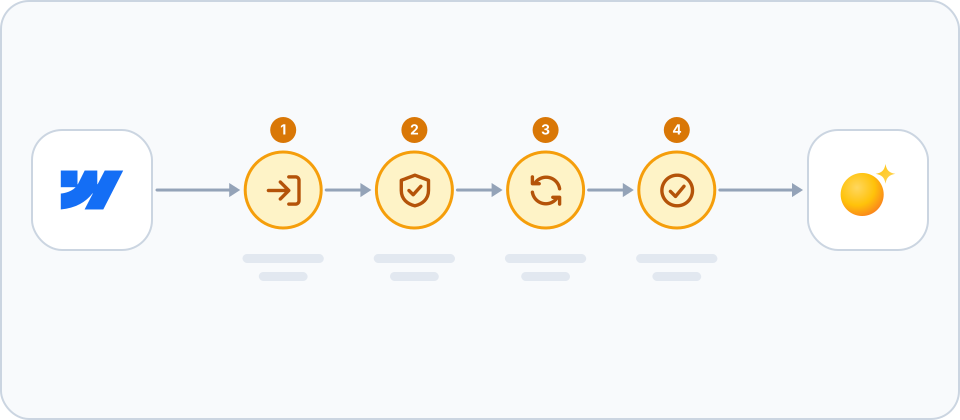
- Authorise the Raysly app. In Raysly open Settings → Integrations, find the Webflow card and click Connect with Webflow. Approve the Raysly app on Webflow. If you choose more than one site there, Raysly asks which one to connect.
- Let products sync. If the site uses Webflow Ecommerce, Raysly reads its products, prices (in the site currency) and stock, and updates them when stock changes. Sites without Ecommerce skip this step.
- Add the offer widget. If your site domain is on your list under Settings → Website widget, Raysly adds the widget script to the site for you. Otherwise copy the widget snippet from that page, paste it into an Embed element in the Webflow Designer, then publish the site.
- Choose what Raysly does. On the Webflow card you can switch the capabilities Raysly offers for the store, such as catalogue sync. Your Webflow site, checkout and invoicing stay as they are.
Adding the app from Webflow
If you add the Raysly app from Webflow instead of starting in Raysly, Raysly asks you to sign in (or sign up) and confirm which site to connect, or asks you to come back to Raysly and click Connect with Webflow. Nothing is linked to your Raysly account until you confirm there.
What the Raysly app asks for
- Required: Read your sites, so you can pick which one to connect.
- Required: Read Webflow Ecommerce products, prices, stock and the store currency.
- Optional: Create webhooks so stock changes reach Raysly quickly.
- Optional: Add the Raysly widget script to your site, only when your widget settings allow that site.
If you remove the app
- Webflow does not tell Raysly when the app is removed. After you remove it, the Webflow card shows "Reconnect" after the next sync, and syncing stays stopped until you reconnect.
- Disconnecting in Raysly removes the webhooks and the widget script Raysly added. To revoke access completely, also remove the Raysly app in your Webflow workspace settings.
- Products already imported stay in Raysly until you remove them: disconnect the site from its card and tick "Also permanently remove all synced products" in the disconnect dialog.
Frequently asked questions
Do I need a Raysly account first?
Yes. Raysly connects a store to your Raysly account, so you create the account first and then connect the store. Create a Raysly account if you do not have one.
Raysly asked me to pick a site. Can I connect more than one?
One Webflow site per Raysly account. If you authorise the app for several sites, Raysly asks which one to connect.
My products are not syncing. Why?
Product sync needs Webflow Ecommerce on the site. Without it Raysly shows a clear notice, and the offer widget and lead capture still work. Raysly also does not show Webflow prices on offers until it knows whether they include tax.
The form does not show on my published site. Why?
Either the site domain is not on the list under Settings → Website widget, so Raysly did not add the script, or the snippet has not been pasted into an Embed element and published. Add the domain, or paste the snippet and publish.
Does Raysly change or take over my store orders?
No. Your products, checkout and invoicing stay on your store. Raysly does not import order history.
How many stores can I connect?
It depends on your Raysly plan. If you reach the limit, Raysly tells you when you try to connect another store; disconnect a store you no longer use or move to a plan that allows more.
Where can I get more help?
Still stuck? Email support@raysly.com and tell us the platform, what you clicked and what you saw.